Photoshop合成城市被流星攻擊場景【英】
文章來源于 Photoshoptutorials,感謝作者 Jarka Hrnčárko 給我們帶來經精彩的文章!教程素材和源文件:流星襲擊的末日城市PS教程素材
Learn how to create this cinematic scene in quick and easy steps! This Photoshop tutorial will show you how to blend images to create an apocalyptic scene and add flying meteors with premade Photoshop brushes. You’ll also learn several different ways to add lighting effects and create a strong atmosphere.
Preview of Final Results

Step 1 – Creating Background
Create new document in Photoshop. Download photo of the sky listed in the beginning of the tutorial and drag it into your new Photoshop document. Name this new layer SKY. It’s a great habit to name all your layers because once you create something more complicated it saves you lot of time finding some layer you want to adjust.
Grab the Marquee Tool (M) and select down part of the sky without the rooftops. Press Ctrl+C to copy the selection and then Ctrl+V to paste it.

Place this new layer under SKY and name it BACKGROUND. Go to Edit > Free Transform or press Ctrl+T on your keyboard to activate the Free Transform Tool. Drag the bottom part of BACKGROUND to the bottom part of the image. On the photo below you can see what I mean.
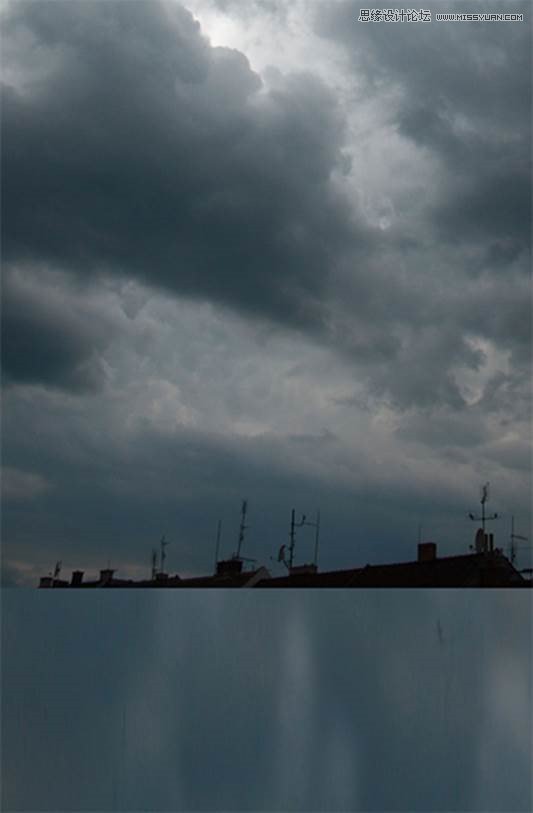
It’s just a base over which you put the skyscrapers so you don’t need to worry that it looks weird. Add new empty layer on the top of all layers and name it RETOUCH. Grab the Stamp Tool (S) and clone out the rooftops. After this step your image should look similar like the one below.

Step 2 – Adding City
In this step I’ll show you little trick how to add photo of a city to this photo manipulation very easily and seamlessly without some complicated and time consuming masking. Download picture of the city listed in the beginning of the tutorial and drag it into your photo manipulation. Place it on the top of all layers and name it CITY 1. Right click on this layer and select option Duplicate layer. Name this new layer CITY 2 and place it on the top of all layers. Now let’s move on blending. You created two layers of the city because each one of them you’ll blend bit differently to achieve the best effect. Make CITY 2 invisible to be able to see only CITY 1 (click on the eye icon left to the layer name).

Click on the layer CITY 1 and lower its Opacity on 50%. You can find this option in top right corner of Layers palette.

As you can see there is harsh transition between CITY 1 and rest of the image. To blend it better add layer mask to CITY 1. You can find the button Add layer mask on the bottom part of the Layers palette.
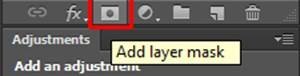
Grab the Brush Tool (B), select some soft round brush and lower its Opacity on about 70%. Pick black color. Make sure the layer mask is activated (click on it) and paint over the upper part of CITY 1 to create smooth transition between this layer and the rest of the image.
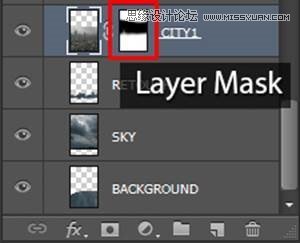
You should blend the layer similarly as on the following picture.

As you can see the city is barely visible right now. Here comes the second layer with city in play. Make CITY 2 visible again and change its Blending Mode on Overlay. Below you can see how this additional layer affects the photo manipulation.
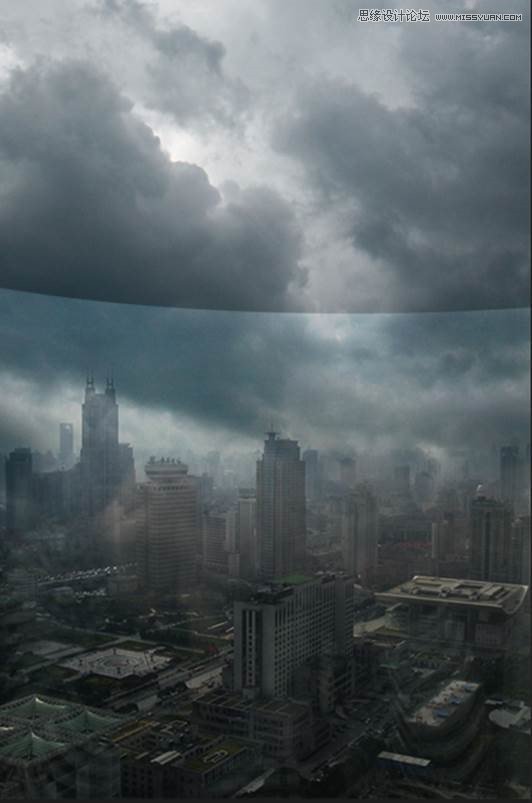
There is the harsh transition between CITY 2 and the rest of the layers. Add new layer mask to CITY 2, grab the Brush Tool (B) with the same settings as before and blend it properly.
 愛你不要你
愛你不要你
-
 Photoshop制作復古風格的老照片效果【英】2018-04-23
-
 Photoshop合成長著創意大樹的長頸鹿【英】2018-04-23
-
 Photoshop合成冰凍特效的金魚場景【英】2018-02-10
-
 Photoshop合成夢幻風格的森林場景【英】2018-02-10
-
 Photoshop合成正在施法的巫師【英】2018-02-10
-
 Photoshop制作金屬質感的3D立體字【英】2018-01-09
-
 Photoshop設計火焰燃燒藝術字教程【英】2018-01-09
-
Photoshop合成冰凍特效的金魚場景【英】
相關文章34052018-02-10
-
Photoshop合成夢幻風格的森林場景【英】
相關文章24492018-02-10
-
 Photoshop合成創意的英雄戰斗場景教程【英】
相關文章5802017-12-12
Photoshop合成創意的英雄戰斗場景教程【英】
相關文章5802017-12-12