Photoshop制作可愛(ài)的糖果餅干字【英】
文章來(lái)源于 Tutsplus,感謝作者 Rose 給我們帶來(lái)經(jīng)精彩的文章!先看看效果圖

This tutorial will show you how to use Photoshop's brush settings, layer styles, and adjustment layers to create a fun, bright glazed cookies text effect. Let's get started!
1. How to Create a Gradient Background and Text Layers
Step 1
Create a new 1000 x 800px document, and click the Create new fill or adjustment layer icon at the bottom of the Layers panel to add a Gradient layer.
Create the gradient fill using the Colors #e8d2d6 to the left and #ddbcc0 to the right, and change the Angle to 107.

Step 2
Create the text in All Caps using the font Sniglet, and set the Size to 250 pt.
You can create the whole word at once, or, if you want a more dynamic result, create each letter on a separate layer.
If you are creating the letters separately, make sure to place each one's layer in a group with the letter's name.

2. How to Create and Save a Stroke Brush Tip
Step 1
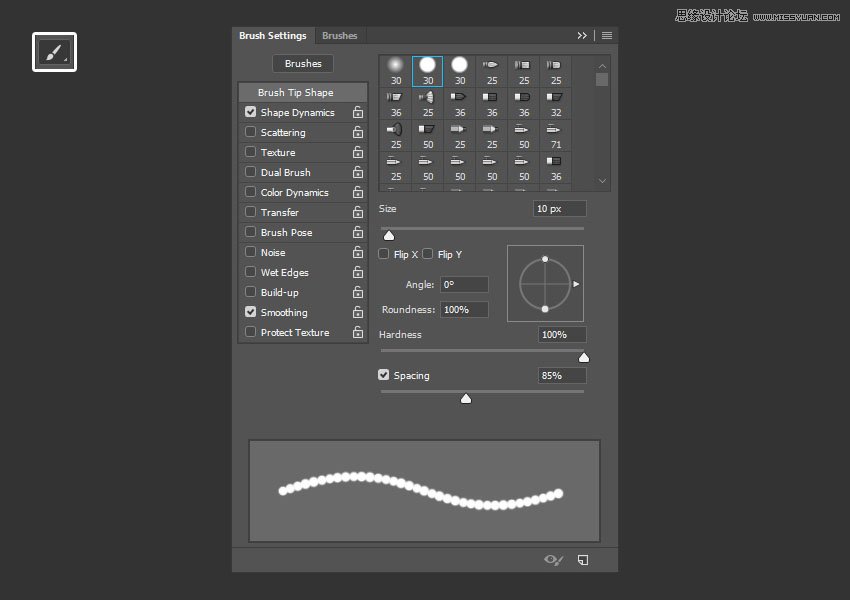
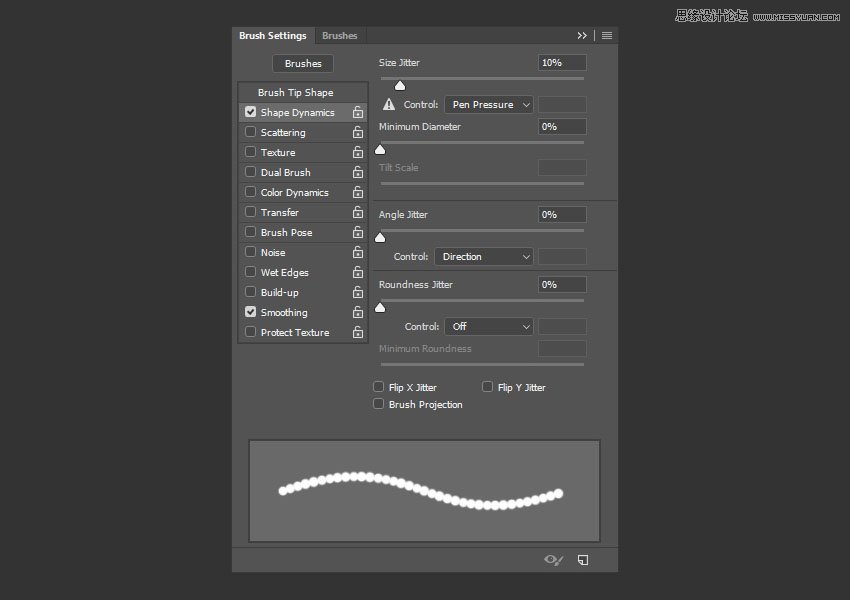
Pick the Brush Tool and open the Brush panel. Choose a hard round tip and use these settings:
Brush Tip Shape
Shape Dynamics
Step 2
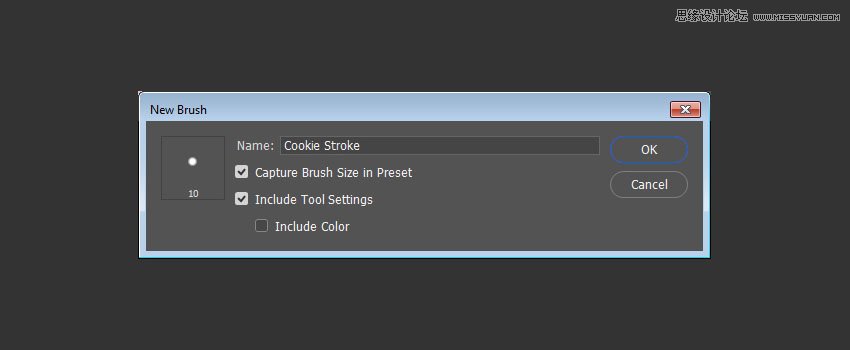
Click the Create new brush icon in the bottom right corner of the panel, change the Name to Cookie Stroke, and click OK.
3. How to Create and Stroke a Work Path
Step 1
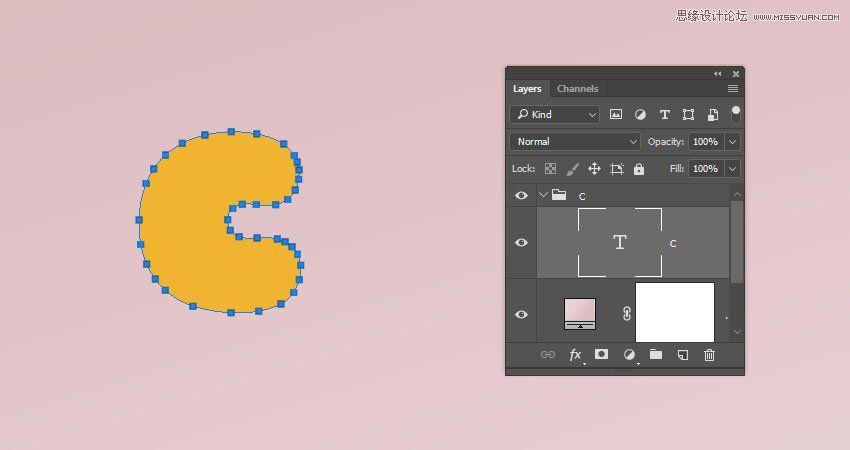
Right-click the text layer and choose Create Work Path.
 情非得已
情非得已
-
 Photoshop制作復(fù)古風(fēng)格的老照片效果【英】2018-04-23
-
 Photoshop合成長(zhǎng)著創(chuàng)意大樹(shù)的長(zhǎng)頸鹿【英】2018-04-23
-
 Photoshop合成冰凍特效的金魚(yú)場(chǎng)景【英】2018-02-10
-
 Photoshop合成夢(mèng)幻風(fēng)格的森林場(chǎng)景【英】2018-02-10
-
 Photoshop合成正在施法的巫師【英】2018-02-10
-
 Photoshop制作金屬質(zhì)感的3D立體字【英】2018-01-09
-
 Photoshop設(shè)計(jì)火焰燃燒藝術(shù)字教程【英】2018-01-09
-
Photoshop制作復(fù)古風(fēng)格的老照片效果【英】
相關(guān)文章11882018-04-23
-
Photoshop合成長(zhǎng)著創(chuàng)意大樹(shù)的長(zhǎng)頸鹿【英】
相關(guān)文章13832018-04-23
-
Photoshop合成冰凍特效的金魚(yú)場(chǎng)景【英】
相關(guān)文章34052018-02-10
-
 Photoshop制作黃金質(zhì)感立體字【英】
相關(guān)文章7422018-02-10
Photoshop制作黃金質(zhì)感立體字【英】
相關(guān)文章7422018-02-10
-
 Photoshop制作驚艷大氣的3D立體字
相關(guān)文章14682018-02-10
Photoshop制作驚艷大氣的3D立體字
相關(guān)文章14682018-02-10
-
Photoshop合成夢(mèng)幻風(fēng)格的森林場(chǎng)景【英】
相關(guān)文章24492018-02-10
-
Photoshop合成正在施法的巫師【英】
相關(guān)文章8372018-02-10
-
 Photoshop制作復(fù)古雙重曝光字體
相關(guān)文章6532018-01-09
Photoshop制作復(fù)古雙重曝光字體
相關(guān)文章6532018-01-09