Photoshop制作可愛的糖果餅干字【英】(6)
文章來源于 Tutsplus,感謝作者 Rose 給我們帶來經(jīng)精彩的文章!Double-click the new layer to apply the following layer style:
Step 2
Add a Bevel and Emboss with these settings:
Size: 6
Uncheck the Use Global Light box
Angle: 98
Altitude: 53
Check the Anti-aliased box
Highlight Mode: Vivid Light
Opacity: 5%
Shadow Mode: Color Burn

Step 3
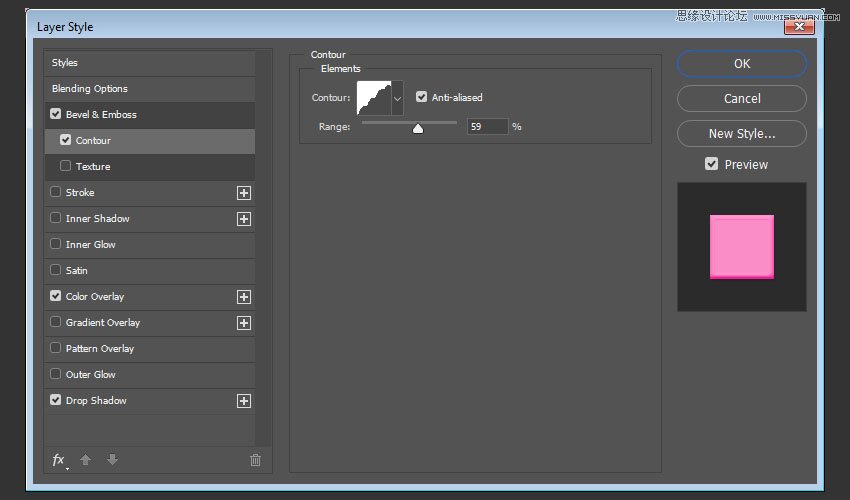
Add a Contour with these settings:
Contour: Rounded Steps
Check the Anti-aliased box.
Range: 59%
Step 4
Add a Color Overlay with these settings:
Color: #f88dc7
This is where you can choose the color of the sprinkles on the styled layer, so you can choose any color you like.

Step 5
Add a Drop Shadow with these settings:
Color: #2a2826
Opacity: 20%
Distance: 2
Size: 3

12. How to Add Sprinkles
Step 1
Rename the styled layer to the color you chose for the Color Overlay effect, and copy its layer style.
Click-drag slightly over the letters to add the sprinkles. You can change the brush tip's Spacing and Scattering values as needed to create an effect you like.

Step 2
Create new layers, name each one with the color you want its sprinkles to be, and paste the layer style to it.
All you need to do to change the sprinkles' color is double-click the sprinkles layer, and choose a new Color value for the Color Overlay effect.

Step 3
You can add as many sprinkle layers and colors as you like to fill the text with.

 情非得已
情非得已
-
 Photoshop制作復(fù)古風(fēng)格的老照片效果【英】2018-04-23
-
 Photoshop合成長著創(chuàng)意大樹的長頸鹿【英】2018-04-23
-
 Photoshop合成冰凍特效的金魚場景【英】2018-02-10
-
 Photoshop合成夢幻風(fēng)格的森林場景【英】2018-02-10
-
 Photoshop合成正在施法的巫師【英】2018-02-10
-
 Photoshop制作金屬質(zhì)感的3D立體字【英】2018-01-09
-
 Photoshop設(shè)計火焰燃燒藝術(shù)字教程【英】2018-01-09
-
Photoshop制作復(fù)古風(fēng)格的老照片效果【英】
相關(guān)文章11882018-04-23
-
Photoshop合成長著創(chuàng)意大樹的長頸鹿【英】
相關(guān)文章13832018-04-23
-
Photoshop合成冰凍特效的金魚場景【英】
相關(guān)文章34052018-02-10
-
 Photoshop制作黃金質(zhì)感立體字【英】
相關(guān)文章7422018-02-10
Photoshop制作黃金質(zhì)感立體字【英】
相關(guān)文章7422018-02-10
-
 Photoshop制作驚艷大氣的3D立體字
相關(guān)文章14682018-02-10
Photoshop制作驚艷大氣的3D立體字
相關(guān)文章14682018-02-10
-
Photoshop合成夢幻風(fēng)格的森林場景【英】
相關(guān)文章24492018-02-10
-
Photoshop合成正在施法的巫師【英】
相關(guān)文章8372018-02-10
-
 Photoshop制作復(fù)古雙重曝光字體
相關(guān)文章6532018-01-09
Photoshop制作復(fù)古雙重曝光字體
相關(guān)文章6532018-01-09