Photoshop合成恐怖特效的萬圣節人像【英】
文章來源于 photoshoptutorials,感謝作者 Andrea Garcia 給我們帶來經精彩的文章!教程所需要的素材:萬圣節人像裝扮特效PS教程素材
Learn how to add a deadly-look to a portrait photo. This Photoshop tutorial will show you how to use a skull to give the face a creepy look, apply lighting effects, and more.
Preview of Final Results

Tutorial Resources
Water Background – knightfall-stock
Model– xstockx
Skull – christasvengel-stock
Texture – shadeybabey
Webs – redheadstock
Skull 2 – fantasystock
Step 1- Choose the Model.
This Picture is great to create this type of manipulation, because the model’s make up help a lot.

Step 2 – Change the size.
To do this go to Image -> Image size. Or Press (Alt+Ctrl +I). Resize the image to: Width:837 X Height: 1300 pixels and press ok.

Step 3- Select the Model.
Use the Lasso tool to Select the model.
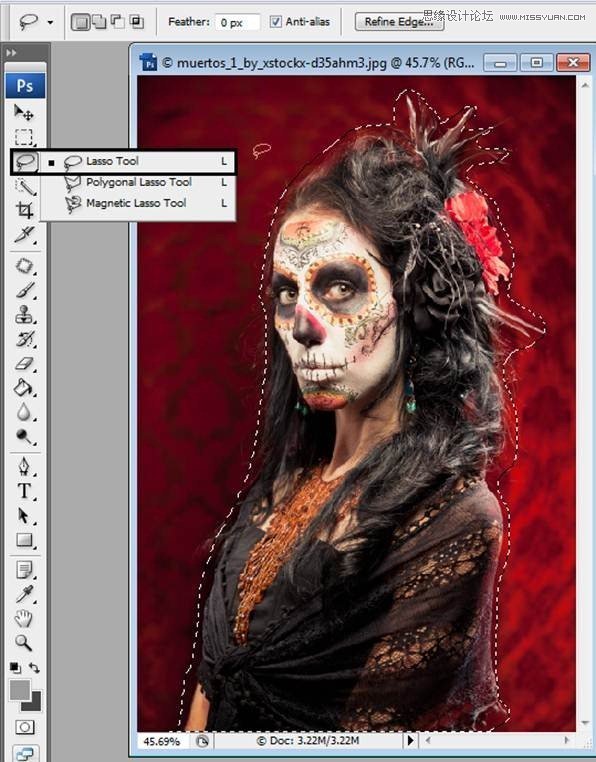
Step 4- Duplicate a Layer
To duplicate that selection press Ctrl + J. Also you can give a right click in the selection and press the option Layer via copy.

You are going to have something like this:

Step 5 – Less Saturation
Duplicate the layer once again (Ctrl + J). In this layer reduce the Saturation (Ctrl + U) option Saturation: -100.

Step 6- Set the layer blend mode in Soft light.
To get more contrast use the layer in soft light mode with and reduce the opacity by: -50.
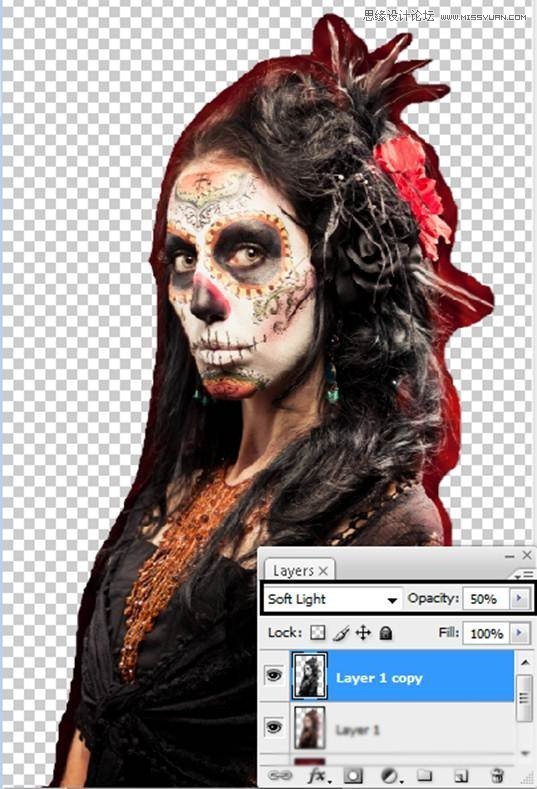
Step 7- The Skin
Use the Lasso tool to select the model’s skin and duplicate the layer (Ctrl +J).

 愛你不要你
愛你不要你
-
 Photoshop制作復古風格的老照片效果【英】2018-04-23
-
 Photoshop合成長著創意大樹的長頸鹿【英】2018-04-23
-
 Photoshop合成冰凍特效的金魚場景【英】2018-02-10
-
 Photoshop合成夢幻風格的森林場景【英】2018-02-10
-
 Photoshop合成正在施法的巫師【英】2018-02-10
-
 Photoshop制作金屬質感的3D立體字【英】2018-01-09
-
 Photoshop設計火焰燃燒藝術字教程【英】2018-01-09
-
Photoshop合成冰凍特效的金魚場景【英】
相關文章34052018-02-10