Photoshop制作驚艷大氣的3D立體字
文章來源于 Tutsplus.com,感謝作者 Rose 給我們帶來經(jīng)精彩的文章!教程所需要的素材:混合主題的3D立體字PS教程素材
先看看效果圖

What You'll Be Creating
This tutorial will show you how to create and style a mixer brush tip, and adjust its settings to stroke a work path and create a simple 3D text effect. Let's get started!
1. How to Create Background and Text Layers
Step 1
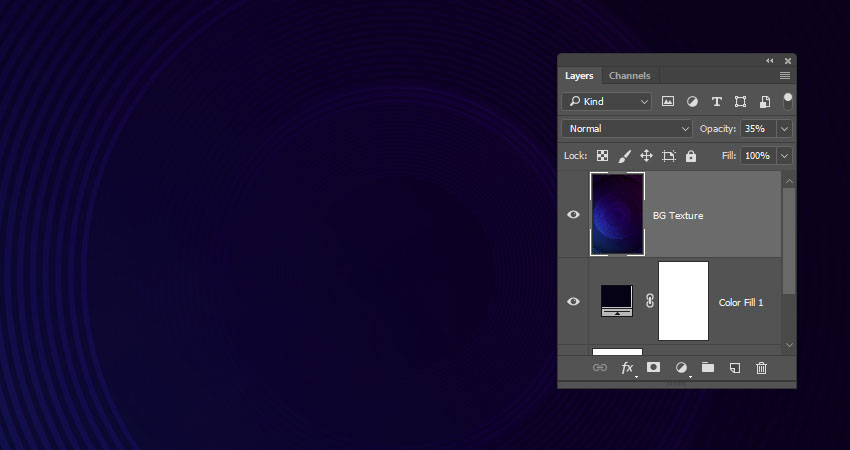
Create a new 1250 x 2000 px document, click the Create new fill or adjustment layer icon at the bottom of the Layers panel, choose Solid Color, and set the Color Fill to #040214.

Step 2
Add the Blue circle background image on top of the Solid Color layer, rename its layer to BG Texture, change its Opacity to 35%, and resize it as needed.
Step 3
Create a reference text using any script font you like. The font used here is Nickainley, and the Size is set to 350 pt.
If you have more than one line of text, make sure to change the Leading value to one you like. Here, it is set to 550 pt.

2. How to Create and Style a Mixer Brush Tip
Step 1
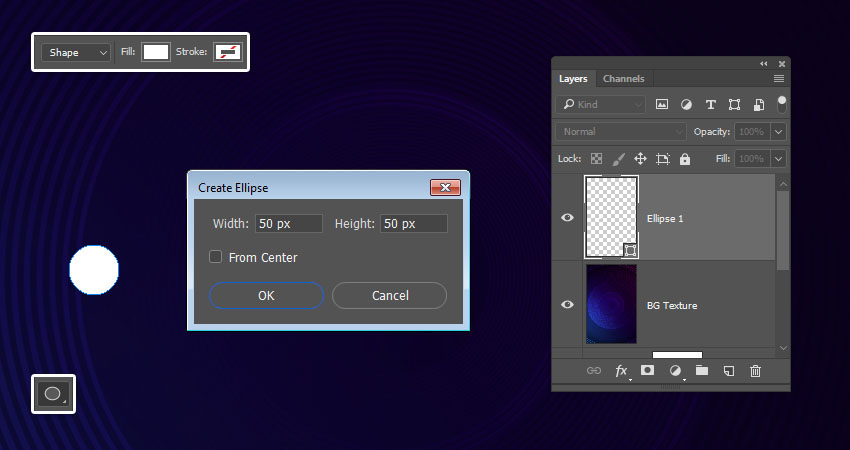
Pick the Ellipse Tool, make sure that the Shape option in the Options bar is active, and click anywhere inside the document to get the Create Ellipse box.
Set the Width and Height values to 50 px, and click OK.
 情非得已
情非得已
-
 Photoshop制作復(fù)古風(fēng)格的老照片效果【英】2018-04-23
-
 Photoshop合成長著創(chuàng)意大樹的長頸鹿【英】2018-04-23
-
 Photoshop合成冰凍特效的金魚場景【英】2018-02-10
-
 Photoshop合成夢幻風(fēng)格的森林場景【英】2018-02-10
-
 Photoshop合成正在施法的巫師【英】2018-02-10
-
 Photoshop制作金屬質(zhì)感的3D立體字【英】2018-01-09
-
 Photoshop設(shè)計火焰燃燒藝術(shù)字教程【英】2018-01-09
-
Photoshop制作復(fù)古風(fēng)格的老照片效果【英】
相關(guān)文章11882018-04-23
-
 Photoshop制作黃金質(zhì)感立體字【英】
相關(guān)文章7422018-02-10
Photoshop制作黃金質(zhì)感立體字【英】
相關(guān)文章7422018-02-10
-
 Photoshop制作復(fù)古雙重曝光字體
相關(guān)文章6532018-01-09
Photoshop制作復(fù)古雙重曝光字體
相關(guān)文章6532018-01-09
-
 Photoshop制作木地板LOGO刻印效果【英】
相關(guān)文章19272018-01-09
Photoshop制作木地板LOGO刻印效果【英】
相關(guān)文章19272018-01-09
-
Photoshop制作金屬質(zhì)感的3D立體字【英】
相關(guān)文章4612018-01-09
-
 Photoshop制作復(fù)古花朵組成的藝術(shù)字【英】
相關(guān)文章3802018-01-09
Photoshop制作復(fù)古花朵組成的藝術(shù)字【英】
相關(guān)文章3802018-01-09
-
 Photoshop制作可愛的糖果餅干字【英】
相關(guān)文章6722017-12-25
Photoshop制作可愛的糖果餅干字【英】
相關(guān)文章6722017-12-25
-
 Photoshop制作夢幻耶穌光和高光背景【英】
相關(guān)文章6002017-12-16
Photoshop制作夢幻耶穌光和高光背景【英】
相關(guān)文章6002017-12-16