Photoshop制作黃金質感立體字【英】
文章來源于 Tutsplus.com,感謝作者 Rose 給我們帶來經精彩的文章!教程所需要的素材:金沙質感3D立體字設計PS教程素材
先看看效果圖

What You'll Be Creating
This tutorial will show you how to use Photoshop's 3D Tools, adjustment layers, and a couple of textures to create a dazzling, glittery, festive text effect. Let's get started!
This text effect was inspired by the many Layer Styles available on GraphicRiver.
1. How to Create a Text Shape
Step 1
Create a new 3500 x 2000 px document.
Then, create the text using the font HWT Artz. Set the Size to 600 pt and the Tracking to 150 pt.
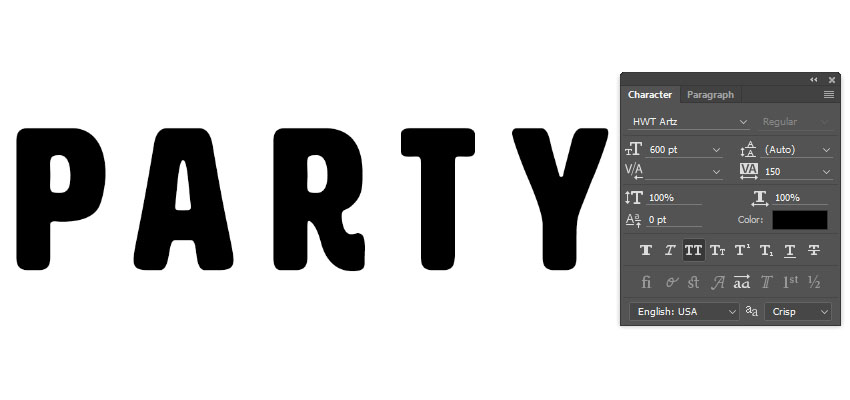
Step 2
Rename the text layer to Text, and then right-click it and choose Convert to Shape.

2. How to Create Stroke Layers
Step 1
Duplicate the Text layer and rename the copy to Stroke 1.

Step 2
Pick the Direct Selection Tool (A) to get the shape options in the Options bar.
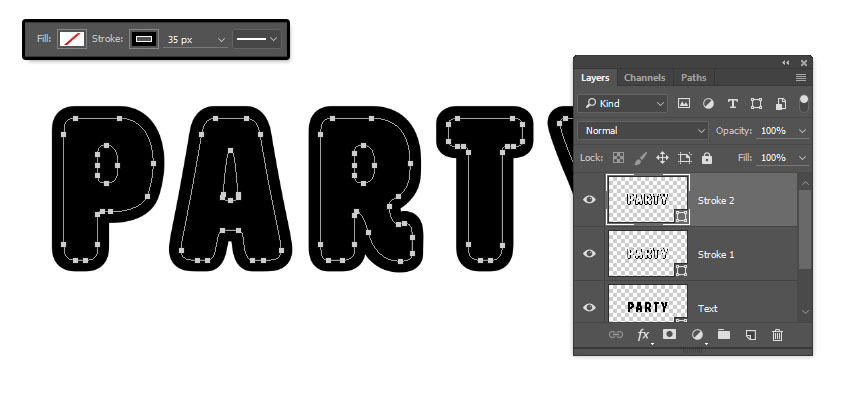
Change the Fill to None, the Stroke Color to Black, and its Size to 25, and then click the Set shape stroke type icon, and change the Align to Outside.

Step 3
Duplicate the Stroke 1 layer, rename the copy to Stroke 2, and change the Stroke Size to 35.
Step 4
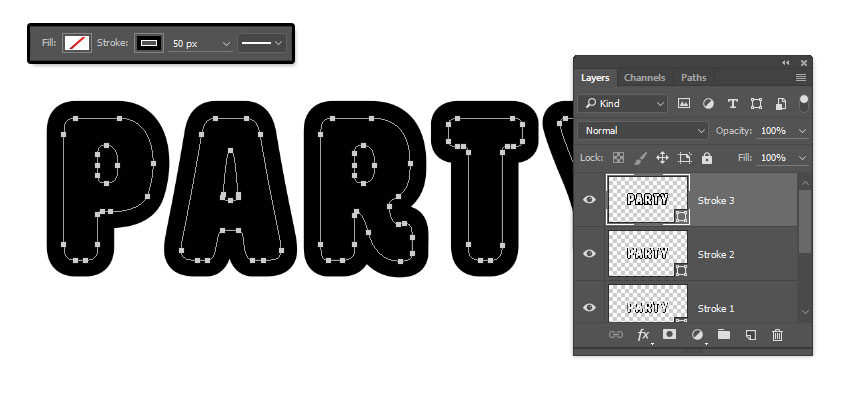
Duplicate the Stroke 2 layer, rename the copy to Stroke 3, and change the Stroke Size to 50.
3. How to Create 3D Layers
Step 1
For each shape layer you have, select it, and then go to 3D > New 3D Extrusion from Selected Path.

Step 2
Select all 3D layers you have, and go to 3D > Merge 3D Layers.

 情非得已
情非得已
-
 Photoshop制作復古風格的老照片效果【英】2018-04-23
-
 Photoshop合成長著創意大樹的長頸鹿【英】2018-04-23
-
 Photoshop合成冰凍特效的金魚場景【英】2018-02-10
-
 Photoshop合成夢幻風格的森林場景【英】2018-02-10
-
 Photoshop合成正在施法的巫師【英】2018-02-10
-
 Photoshop制作金屬質感的3D立體字【英】2018-01-09
-
 Photoshop設計火焰燃燒藝術字教程【英】2018-01-09
-
Photoshop制作復古風格的老照片效果【英】
相關文章11882018-04-23
-
 Photoshop制作驚艷大氣的3D立體字
相關文章14682018-02-10
Photoshop制作驚艷大氣的3D立體字
相關文章14682018-02-10
-
 Photoshop制作復古雙重曝光字體
相關文章6532018-01-09
Photoshop制作復古雙重曝光字體
相關文章6532018-01-09
-
 Photoshop制作木地板LOGO刻印效果【英】
相關文章19272018-01-09
Photoshop制作木地板LOGO刻印效果【英】
相關文章19272018-01-09
-
Photoshop制作金屬質感的3D立體字【英】
相關文章4612018-01-09
-
 Photoshop制作復古花朵組成的藝術字【英】
相關文章3802018-01-09
Photoshop制作復古花朵組成的藝術字【英】
相關文章3802018-01-09
-
 Photoshop制作可愛的糖果餅干字【英】
相關文章6722017-12-25
Photoshop制作可愛的糖果餅干字【英】
相關文章6722017-12-25
-
 Photoshop制作夢幻耶穌光和高光背景【英】
相關文章6002017-12-16
Photoshop制作夢幻耶穌光和高光背景【英】
相關文章6002017-12-16