Photoshop設計火焰燃燒藝術字教程【英】(2)
文章來源于 Tutsplus,感謝作者 Rose 給我們帶來經精彩的文章!4. How to Create a Texture Overlay Layer
Step 1
Create a new layer on top of the Stroke Flames layer, name it Flame Texture, and fill it with White.
Make sure to set the Foreground and Background Colors to Black and White.
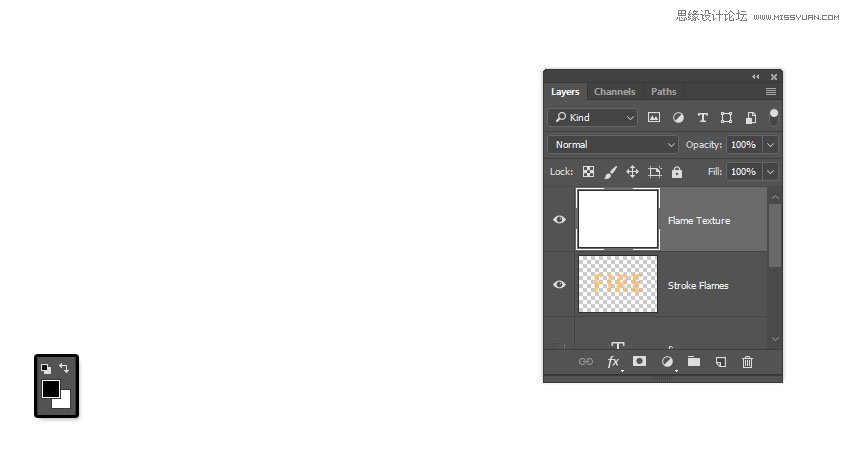
Step 2
Right-click the Flame Texture layer and choose Convert to Smart Object.

Step 3
Right-click the Flame Texture layer again and choose Create Clipping Mask.

Step 4
Go to Filter > Render > Clouds.

5. How to Create a Texture Using Filters
Step 1
Go to Filter > Filter Gallery to apply the following Filters:
Sketch > Bas Relief
Detail: 13
Smoothness: 3
Light: Bottom

Step 2
Click the New effect layer icon in the bottom right corner to add another filter, and apply Bas Relief with the same values again.

Step 3
Add another new effect layer.
Brush Strokes > Spatter
Spray Radius: 10
Smoothness: 5
Click OK when done.

 愛你不要你
愛你不要你
-
 Photoshop制作復古風格的老照片效果【英】2018-04-23
-
 Photoshop合成長著創意大樹的長頸鹿【英】2018-04-23
-
 Photoshop合成冰凍特效的金魚場景【英】2018-02-10
-
 Photoshop合成夢幻風格的森林場景【英】2018-02-10
-
 Photoshop合成正在施法的巫師【英】2018-02-10
-
 Photoshop制作金屬質感的3D立體字【英】2018-01-09
-
 Photoshop設計火焰燃燒藝術字教程【英】2018-01-09
-
 Photoshop制作復古花朵組成的藝術字【英】
相關文章3802018-01-09
Photoshop制作復古花朵組成的藝術字【英】
相關文章3802018-01-09
-
 Photoshop制作毛茸茸的圣誕節字體【英】
相關文章8882017-12-16
Photoshop制作毛茸茸的圣誕節字體【英】
相關文章8882017-12-16
-
 Photoshop合成創意的英雄戰斗場景教程【英】
相關文章5802017-12-12
Photoshop合成創意的英雄戰斗場景教程【英】
相關文章5802017-12-12