Photoshop合成被樹妖困住的女孩【英】(4)
文章來源于 photoshoptutorials,感謝作者 ANTAKA NGUYEN 給我們帶來經精彩的文章!Step 14
Apply following adjustment layers to the dead tree.
Brightness/Contrast -> Exposure -> Photo Filter


Here is the result
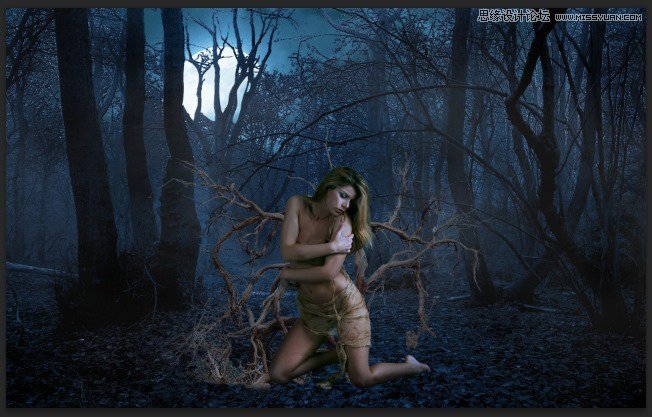
Step 15
Open the Dead Tree 2 and extract the following part

Place it behind the model.

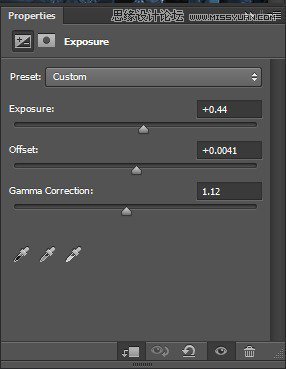
Add an Exposure adjustment layer
And we have some extra dead tree for the girl!

Step 16
This is a very interesting step and I recommend you try it out by your free will. We will make the model being tangled by the dead tree’s branches. Open the Dead Tree 1 stock again and get any piece of branch you want. For example this one

Paste it to our document, right click on its layer and choose Convert To Smart Object, by this way we can transform the branch freely without fearing the quality reduction.
Now you can bend, twist the branch at your free will. Hit Ctrl + T to bring up the Transform tool, right click to choose the option. In this picture I use Warp to bend the branch.

Continue duplicate and bend the branches. Make them twist around the model.

Step 17
Continue creating twisted branches as many as you like, just don’t overdo it.

Create a new layer and paint some shadow to the part which the branches are on the model. Change the Blend Mode to Overlay.

 愛你不要你
愛你不要你
-
 Photoshop制作復古風格的老照片效果【英】2018-04-23
-
 Photoshop合成長著創意大樹的長頸鹿【英】2018-04-23
-
 Photoshop合成冰凍特效的金魚場景【英】2018-02-10
-
 Photoshop合成夢幻風格的森林場景【英】2018-02-10
-
 Photoshop合成正在施法的巫師【英】2018-02-10
-
 Photoshop制作金屬質感的3D立體字【英】2018-01-09
-
 Photoshop設計火焰燃燒藝術字教程【英】2018-01-09
-
Photoshop制作復古風格的老照片效果【英】
相關文章11882018-04-23
-
Photoshop合成長著創意大樹的長頸鹿【英】
相關文章13832018-04-23
-
Photoshop合成冰凍特效的金魚場景【英】
相關文章34052018-02-10
-
 Photoshop制作黃金質感立體字【英】
相關文章7422018-02-10
Photoshop制作黃金質感立體字【英】
相關文章7422018-02-10
-
 Photoshop制作驚艷大氣的3D立體字
相關文章14682018-02-10
Photoshop制作驚艷大氣的3D立體字
相關文章14682018-02-10
-
Photoshop合成夢幻風格的森林場景【英】
相關文章24492018-02-10
-
Photoshop合成正在施法的巫師【英】
相關文章8372018-02-10
-
 Photoshop制作復古雙重曝光字體
相關文章6532018-01-09
Photoshop制作復古雙重曝光字體
相關文章6532018-01-09