Photoshop制作復古花朵組成的藝術字【英】(3)
文章來源于 Tutsplus,感謝作者 Rose 給我們帶來經精彩的文章!Step 4
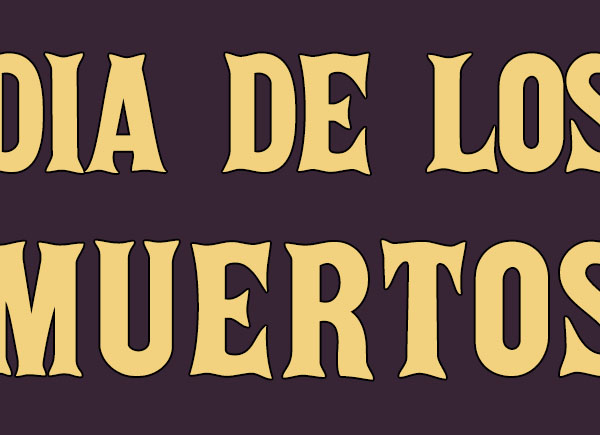
Double-click the original text layer to apply a Stroke effect using the following settings:
Size: 5
Color: #000000

You might not see the stroke clearly now, but it will define the text when we apply the other strokes later on.
8. Create the Shape Layer's Stroke
Step 1
Select the text shape layer and pick the Direct Selection Tool.
In the Options bar, change the Fill to None, the Stroke Color to #b77113, and its Size to 6. Then click the Set shape stroke type icon and click the More Options button.

Step 2
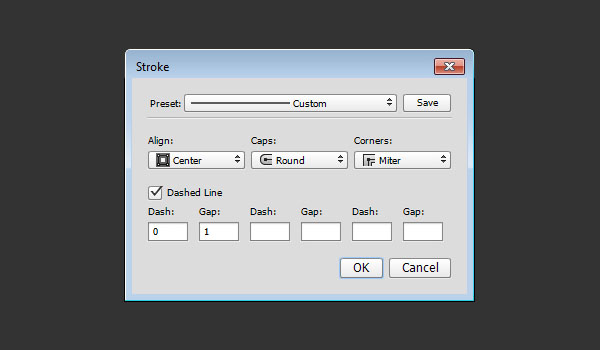
Change Align to Center, Caps to Round, Corners to Miter, and check the Dashed Line box. Change the first Dash value to 0, and the first Gap value to 2.
Step 3
This will create a dotted stroke. Use the Move Tool to nudge the dotted stroke a little bit down to the left side.

Step 4
Duplicate the dotted stroke layer, place the copy below it, and then change the copy's Stroke Color to Blackand its Size to 7.

9. Add the Flowers and the Leaves
Step 1
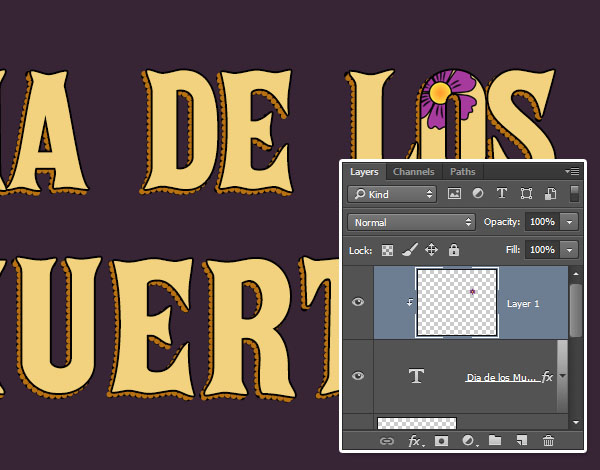
Duplicate the purple flower's layer to the text's document, and resize it as needed.

Step 2
Right-click the flower's layer and choose Create Clipping Mask.
Step 3
What you'll need to do next is select the Move Tool, press and hold the Option key, click-drag the flower and then release, to duplicate and move it over the text.
Keep in mind that you can only duplicate the flower in the selected layer, and that you need to leave some space for the pink flowers and the leaves.

Step 4
Follow the same steps to add in the pink flowers.

Step 5
Then follow the same steps again to add in the leaves. Make sure to place the leaf layers below the flower layers.
If you like, you can resize and rotate the added elements to make the outcome more dynamic.

10. Add the Grunge Texture
Step 1
Place the Grunge image on top of all layers, resize it as needed, change its layer's Blend Mode to Multiply, and set its Opacity to 65%.

Step 2
Click the Create new fill or adjustment layer icon at the bottom of the Layers panel and choose Levels.

Advertisement
Step 3
Click the Clip to layer icon, and change the Highlights value to 245 and the Gamma value to 1.70. This will brighten up the texture a little bit.

You can play around with the shapes, colors, and sizes to create many different outcomes.

Congratulations! You're Done
In this tutorial, we used a couple of shape tools to create a simple marigold flower, and we colored and styled it.
Then we styled a simple leaf brush, and rasterized the layers to use them on top of the text.
After that, we created the text, made shape copies of it, and styled those layers with different strokes to create the outer edges.
Finally, we filled the text with the flower and leaf layers, and added a simple grunge texture to finish the effect off.
 愛你不要你
愛你不要你
-
 Photoshop制作復古風格的老照片效果【英】2018-04-23
-
 Photoshop合成長著創(chuàng)意大樹的長頸鹿【英】2018-04-23
-
 Photoshop合成冰凍特效的金魚場景【英】2018-02-10
-
 Photoshop合成夢幻風格的森林場景【英】2018-02-10
-
 Photoshop合成正在施法的巫師【英】2018-02-10
-
 Photoshop制作金屬質感的3D立體字【英】2018-01-09
-
 Photoshop設計火焰燃燒藝術字教程【英】2018-01-09
-
Photoshop制作復古風格的老照片效果【英】
相關文章11882018-04-23
-
 Photoshop制作黃金質感立體字【英】
相關文章7422018-02-10
Photoshop制作黃金質感立體字【英】
相關文章7422018-02-10
-
 Photoshop制作驚艷大氣的3D立體字
相關文章14682018-02-10
Photoshop制作驚艷大氣的3D立體字
相關文章14682018-02-10
-
 Photoshop制作復古雙重曝光字體
相關文章6532018-01-09
Photoshop制作復古雙重曝光字體
相關文章6532018-01-09
-
 Photoshop制作木地板LOGO刻印效果【英】
相關文章19272018-01-09
Photoshop制作木地板LOGO刻印效果【英】
相關文章19272018-01-09
-
Photoshop制作金屬質感的3D立體字【英】
相關文章4612018-01-09
-
Photoshop設計火焰燃燒藝術字教程【英】
相關文章7612018-01-09
-
 Photoshop制作可愛的糖果餅干字【英】
相關文章6722017-12-25
Photoshop制作可愛的糖果餅干字【英】
相關文章6722017-12-25