Photoshop制作復古風格的老照片效果【英】(5)
文章來源于 站酷,感謝作者 Melody Nieves 給我們帶來經精彩的文章!Step 3
Before we add the vignette, let's create a shadow for the picture frame.
Right-click the picture frame layer and go to Blending Options. Create a Drop Shadow with the following settings.

Advertisement
Step 4
Let's finish with a vignette effect for more drama. This will help blend the overall picture frame with the original green background.
Create a New Layer above all the others.
Select the Gradient Tool (G) and set it to the Foreground Color to Transparent option. Now create a Reflected Linear Gradient using a dark gray color #282828. Set the Layer Blend Mode to Multiply and lower the Opacity to 88%.
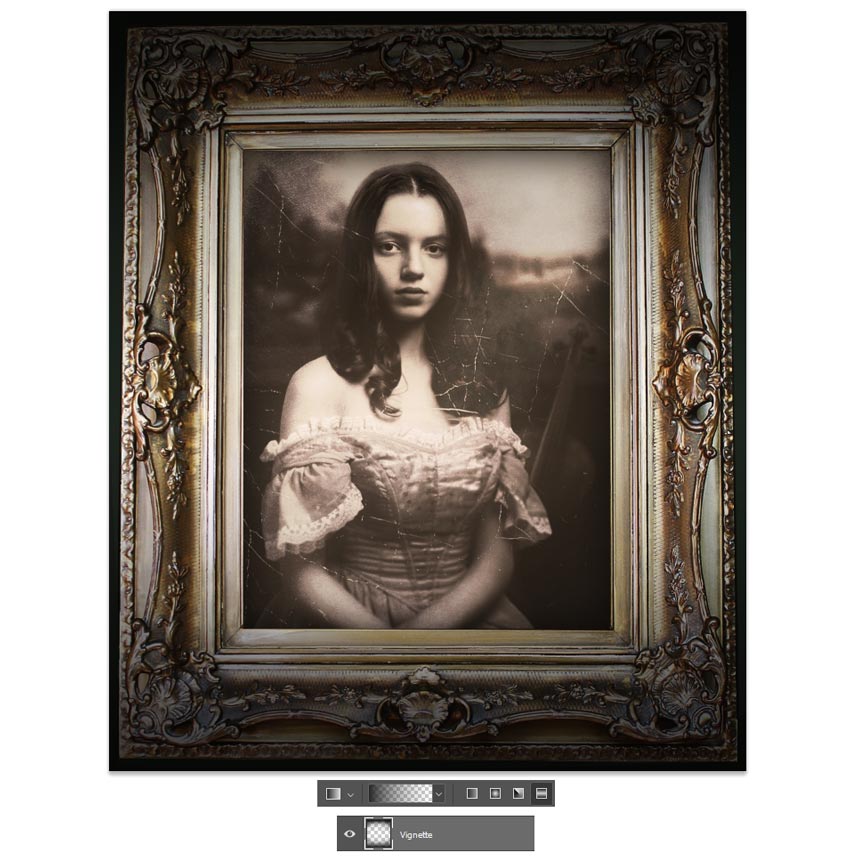
Feel free to add even more shadow on another New Layer. Use a Soft Round Brush (0% Hardness/10-30% Opacity) to paint more dark shadow along the edges for a rounder appearance.
I've also used this layer to paint subtle white scratches onto the picture for even more aging.

Be sure to check out the final result below!
And for more even fun, see how your manipulation would look hanging up on the wall. Here I used this Interior Room image from Envato Elements to try this look out.

Melody Nieves

 情非得已
情非得已
-
 Photoshop制作復古風格的老照片效果【英】2018-04-23
-
 Photoshop合成長著創意大樹的長頸鹿【英】2018-04-23
-
 Photoshop合成冰凍特效的金魚場景【英】2018-02-10
-
 Photoshop合成夢幻風格的森林場景【英】2018-02-10
-
 Photoshop合成正在施法的巫師【英】2018-02-10
-
 Photoshop制作金屬質感的3D立體字【英】2018-01-09
-
 Photoshop設計火焰燃燒藝術字教程【英】2018-01-09
-
 Photoshop制作黃金質感立體字【英】
相關文章7422018-02-10
Photoshop制作黃金質感立體字【英】
相關文章7422018-02-10
-
 Photoshop制作驚艷大氣的3D立體字
相關文章14682018-02-10
Photoshop制作驚艷大氣的3D立體字
相關文章14682018-02-10
-
Photoshop合成夢幻風格的森林場景【英】
相關文章24492018-02-10
-
 Photoshop制作復古雙重曝光字體
相關文章6532018-01-09
Photoshop制作復古雙重曝光字體
相關文章6532018-01-09
-
 Photoshop制作木地板LOGO刻印效果【英】
相關文章19272018-01-09
Photoshop制作木地板LOGO刻印效果【英】
相關文章19272018-01-09
-
Photoshop制作金屬質感的3D立體字【英】
相關文章4612018-01-09
-
 Photoshop制作復古花朵組成的藝術字【英】
相關文章3802018-01-09
Photoshop制作復古花朵組成的藝術字【英】
相關文章3802018-01-09
-
 Photoshop制作可愛的糖果餅干字【英】
相關文章6722017-12-25
Photoshop制作可愛的糖果餅干字【英】
相關文章6722017-12-25